CygNet SocketMan Utility
Warning: This is an unsupported utility. It is an advanced diagnostic tool. Be advised use of this utility is at your own risk. It does not check security. Unless you are certain you know what you are doing, DO NOT use this utility.
The CygNet SocketMan utility (SocketMan.exe) is a socket communication utility for diagnosing TCP/IP communication problems. This tool helps determine if or where a communication connection is failing by allowing users to make a direct TCP/IP connection to a CDPD modem or a terminal server connected to a serial device.
Example
If the UIS is reporting "unable to connect" and the CygNet SocketMan utility is also unable to successfully connect to the communications device then it probably indicates the problem lies in the comm device and not the CygNet services. In essence this utility provides information that can help pinpoint the breakdown in communication.
The CygNet SocketMan utility is in the CygNet\Utilities directory (SocketMan.exe) on the host server. To start the utility, use Windows Explorer to browse to the directory and double-click the program icon.
The default IP address and port number are generic and are not associated with any RTUs or CygNet components. Change these to the appropriate port and TCP/IP address for analysis. The CygNet SocketMan utility persists the previously entered IP address and port numbers on subsequent application uses.
|
CygNet SocketMan Utility |
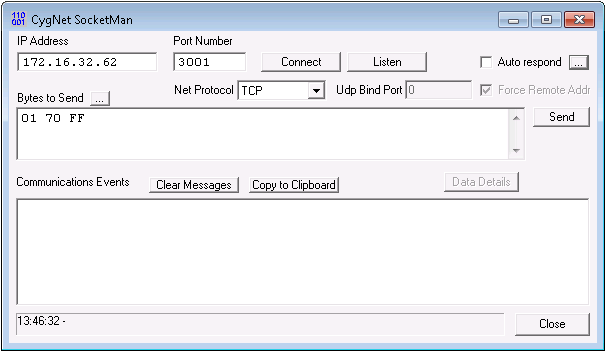
Enter the outgoing message in the Bytes to Send box. The browse button opens a dialog box of previously used byte strings. Add comment to a byte string by adding two dashes after the byte string.
|
03 40 01 -- add comments here |
Click Connect to attempt to connect to the specified IP address. The status of the command and whether or not the connection was successful will appear in the Communications Events box. To sever the connection, click Disconnect. Status information applicable to the disconnection will also be displayed.
To view traffic on a particular port enter the desired port number and enter the IP address of your computer, then click Start Listening. To stop listening, click Stop Listen.
To copy the Communication Events messages, use Copy to Clipboard. To clear messages, click Clear Messages.
Communication Data Details
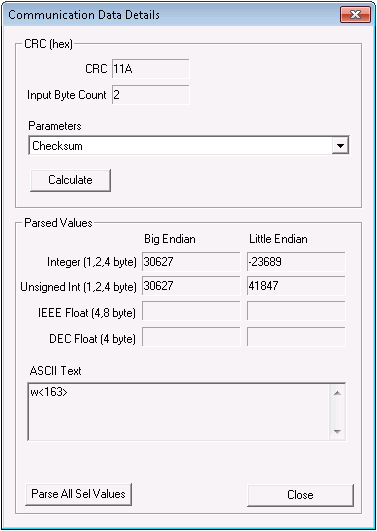
The Data Details button displays the Communication Data Details dialog box. This is the same dialog box that is displayed from the Details button in the Communications Data Viewer in CygNet Explorer.
CRC
Select the appropriate device driver from the Calculations drop-down menu to ensure the correct algorithm is used when calculating the Cyclic Redundancy Check (CRC). Both the CRC and Input Byte Count boxes are dynamically linked to the bytes that are highlighted in the CygNet SocketMan utility Bytes To Send box. As different sets of bytes are selected, the values will change accordingly.
|
Communication Data Details |
Parsed Values
Hex bytes highlighted in the CygNet SocketMan utility text box are converted to decimal values in both Big Endian and Little Endian format. These converted values are displayed along with the byte's ASCII representation if relevant in the Parsed Values area. This area is also dynamically linked to the selected CygNet SocketMan utility bytes and will changes as different sets of bytes are selected.
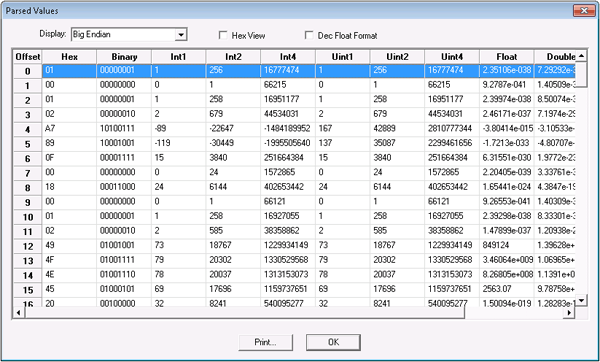
The Parse All Sel Values button displays each selected value byte as its own row in a grid in various numeric formats such as hex, binary, decimal, floating-point, etc. The ASCII format is displayed as well. The table can be displayed in Little Endian or Big Endian. Switch modes by selecting the desired type from the Display drop-down menu. Each row label contains the bit offset for the value byte. Enabling the Hex View option converts all table values into Hex. To print the Parse All Sel Values grid, click the Print button at the bottom of the window. Click Close to exit the view.
|
Parsed Values |
Setting Up an Auto-Respond File
Another function of the CygNet SocketMan utility is that it can act as an RTU simulator. This can be enabled by checking the Auto Respond box and selecting an appropriate ARF File (Auto-Response File). This function is primarily used internally by CygNet engineers and it is not recommended for general use.


